
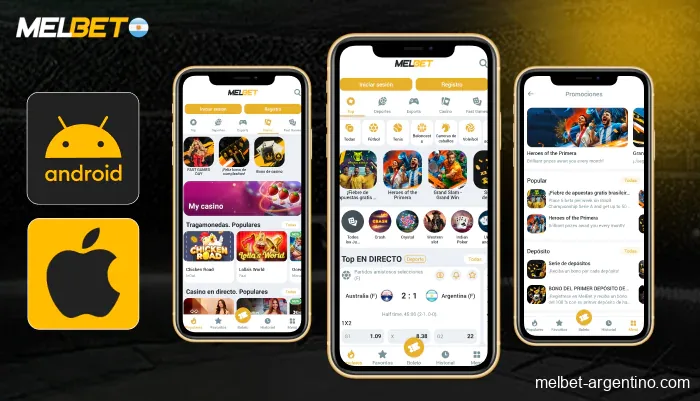
App, mobile website or desktop browser
Choose the route that fits your device rather than assuming that every platform requires a download. A mobile browser avoids a separate installation; an app can provide its own navigation and notifications. A desktop browser gives more space for event lists, rules and transaction records. None of these routes changes the account’s legal or promotional eligibility.
Availability can differ by country. A store listing found through a general search may refer to a different regional service or an unrelated application. Verify the destination, publisher and website link together. A familiar name or yellow-and-black icon alone is not enough.
| Route | Where to begin | Practical distinction |
|---|---|---|
| Android app | Verified mobile section of the operator | Install only the package linked there |
| iPhone or iPad | Official regional store destination | Check the publisher and supported device |
| Mobile browser | Verified website in a current browser | No app installation required |
| Desktop browser | Verified website on a computer | Wider view of markets and account history |
Android installation, step by step
If the verified site supplies an Android package, download it from that source only. Do not use files forwarded through chat groups, altered filenames advertised as “premium” versions or packages claiming to bypass regional restrictions. An app download does not establish that the service is permitted where you live.
Installation permissions and device protection
Android may ask for permission to install from the browser or file manager. Treat that as a temporary permission for the verified file, not an instruction to disable device protections broadly. Once installation is complete, revoke the temporary permission if it is no longer needed.
Read the requested permissions. Access that is unrelated to the application’s function is a reason to stop and check the source. Keep the operating system current and avoid installing over an unknown package with a similar name.
- Open the verified operator website and its mobile download section.
- Select Android and review the package information shown there.
- Download the file and allow installation only for the trusted source if required.
- Install, then open the app and check the destination before signing in.
- Restore temporary installation settings and keep future updates on the same official route.
iPhone and iPad access
Use the store link offered by the verified website for your region. Review the publisher, device compatibility and update history before installation. Search results can include similarly named products, so a direct verified route is preferable to choosing the first matching icon.
Browser shortcuts and account security
If the service is not available in your store region, do not install an unknown configuration profile or change your location to evade restrictions. Where lawful and supported, the mobile website can be the appropriate alternative. Safari can save a website shortcut to the home screen, but that shortcut is not the same as a native app-store application.
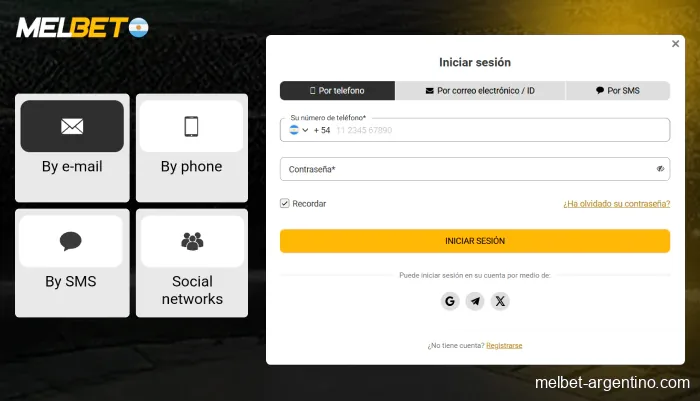
The login details remain those of the existing account. Before storing a password on a shared device, consider who can unlock it. Use a screen lock and the account’s supported security options, and sign out when the device is not under your control.
What stays the same across devices
The account identity, verification status and transaction history belong to the account rather than the phone. Changing from a browser to an app does not remove a document request, an active bonus condition or a withdrawal review. If the balance looks different, check the selected wallet and currency before assuming money is missing.
Casino categories, sports markets and cashier options may be presented in a different layout on a smaller screen. Expand the menu and read the full market or transaction label. A truncated label can hide the distinction between a match result and a period result.
Notifications are optional convenience features, not a reason to keep returning to the account. Disable promotional alerts if they make it harder to maintain your planned limits. See responsible gambling controls for a broader approach to session time and spending.
Updates and common installation problems
An update should come from the same verified route as the original installation. A message claiming that you must install a new package immediately to release a withdrawal is a warning sign. Verify any such request inside the secure account area or through the operator’s known support channel.
Failed installs and loading loops
If an installation fails, check available storage, device compatibility and whether another package with the same identity is already installed. Do not repeatedly download from different websites. An unsupported operating system may require an update or a supported browser instead.
For a blank page or loading loop, first check connectivity and whether other sites load. Then close and reopen the app or browser. Clearing cache may help display problems; clearing all application data can remove saved sessions and preferences, so make sure you can recover access before doing so.
| Symptom | First check | Next useful action |
|---|---|---|
| Download will not complete | Connection and free storage | Retry from the verified source |
| Login rejected | Correct account identifier and password | Use official recovery |
| Balance seems different | Wallet and currency selection | Inspect transaction history |
| Game freezes | Accepted round status | Check history before retrying |
| Update request by message | Authenticity of sender | Verify within the account |
Mobile payments and live games
Use a stable connection when submitting a payment or joining a live table. If a payment screen stalls, check the transaction record before starting another operation. Preserve the reference and amount so that support can identify the request. The payments guide separates deposit and withdrawal stages.
For a live game, video delay and bet acceptance are separate issues. A frozen image does not automatically cancel a confirmed stake. After reconnecting, inspect the round history. Avoid switching devices during an unresolved transaction simply to try again.
Uninstalling an app removes the local software; it does not close the gambling account or cancel an accepted bet. Account closure, self-exclusion and withdrawal questions must be handled through the account’s official procedures. Keep relevant records before removing the application.
Read the details in the mobile access guide.
Frequently asked questions
Do I need a new account after installing the app?
No. Use the existing account. If access fails, follow the official recovery procedure instead of creating a duplicate.
Can I install an APK on an iPhone?
No. Android APK files are not iPhone applications. Use the verified iOS route or a supported mobile browser.
Does deleting the app close my account?
No. Uninstalling removes local software. Account closure or self-exclusion requires the operator’s account procedure.
What should I do if an update arrives through a message?
Verify it through the official website or secure account area. Do not install a package merely because a sender uses the brand name.
We compare the catalogue, promotion rules, mobile access and account procedures. Read how we check information and how to request a correction.
How we review information →